Adding Swagger (OpenAPI) Documentation to Azure Functions — .NET 8 Isolated Worker Model

Author: Jayakumar Srinivasan

Estimated Reading Time: 8 minutes

1. Introduction: Why Swagger Matters for Azure Functions

Most enterprises today rely heavily on Azure Functions to power their API and integration ecosystem.
However, as the number of functions grows, one challenge becomes painfully clear — discoverability.

Internal teams — developers, QA, and integration engineers — often struggle to understand:

  • What endpoints exist?
  • What payload formats are expected?
  • How should they test integrations before backend availability?

Traditionally, Swagger (OpenAPI) solved this for Web APIs — but when it came to Azure Functions, documentation was either manual or non-existent.

This article walks through how we solved this in our enterprise by enabling Swagger documentation for Azure Functions built on the Isolated Worker Model (.NET 8) using Swashbuckle and OpenAPI attributes.


2. Understanding the Azure Function Isolated Worker Model

With .NET 8, the Isolated Worker Model has become the recommended way to build Azure Functions.

It runs your code out of process from the Azure Functions runtime, giving you:

  • Full control over dependency injection
  • Custom middleware
  • Richer debugging experience
  • Compatibility with standard ASP.NET middleware and OpenAPI extensions

If you’ve migrated from the in-process model, you’ll quickly realize that the default OpenAPI integration no longer applies.
That’s exactly where Swashbuckle bridges the gap.


3. Required NuGet Packages

Install the following packages from NuGet:

Microsoft.Azure.Functions.Worker.Extensions.OpenApi

💡 Note: The Microsoft.Azure.Functions.Worker.Extensions.OpenApi package adds the OpenAPI binding attributes, while Swashbuckle.AspNetCore provides the Swagger generation capabilities.

4. Annotating Your Azure Function with OpenAPI Attributes

Here’s a sample Azure Function showcasing OpenAPI annotations:

using System.Net;
using Microsoft.Azure.Functions.Worker;
using Microsoft.Azure.Functions.Worker.Http;
using Microsoft.Azure.WebJobs.Extensions.OpenApi.Core.Attributes;
using Microsoft.OpenApi.Models;

public class CustomerFunctions
{
    [Function("GetCustomerById")]
    [OpenApiOperation(operationId: "GetCustomerById", tags: new[] { "Customer" })]
    [OpenApiParameter(name: "id", In = ParameterLocation.Path, Required = true, Type = typeof(string), Description = "The Customer ID")]
    [OpenApiResponseWithBody(statusCode: HttpStatusCode.OK, contentType: "application/json", bodyType: typeof(Customer), Description = "Customer details")]
    public HttpResponseData Run(
        [HttpTrigger(AuthorizationLevel.Function, "get", Route = "customer/{id}")] HttpRequestData req, 
        string id)
    {
        var response = req.CreateResponse(HttpStatusCode.OK);
        var customer = new Customer { Id = id, Name = "John Doe", Country = "Sweden" };
        response.WriteAsJsonAsync(customer);
        return response;
    }
}

public class Customer
{
    public string Id { get; set; }
    public string Name { get; set; }
    public string Country { get; set; }
}

🧠 Tip: You can apply the [OpenApiRequestBody], [OpenApiResponseWithBody], and [OpenApiParameter] attributes to define schema and descriptions just like in traditional ASP.NET Core APIs.

5. Hosting Swagger UI in Azure Functions

Once configured, you can navigate to:

https://<your-function-app>.azurewebsites.net/api/swagger/ui

Please be aware that you need to enable CORS on the Function to view the swagger documentation. There are many ways to secure your Swagger docuentation which will bea a separate article and I will not discuss much about it here. However using CORS in PROD environment should be avoided.

You’ll see a fully interactive Swagger UI showing:

  • All function endpoints
  • Input/output parameters
  • Response models
  • Sample payloads

6. Real-world Benefits We Observed

After implementing Swagger documentation for our Azure Function ecosystem:

  • 70% fewer API-related support tickets
  • Faster onboarding for new developers and QA engineers
  • Zero dependency on manually shared Postman collections
  • Instant clarity for consuming systems and teams

This approach simplified not just documentation — it enhanced collaboration, maintainability, and confidence across teams.


7. Lessons Learned and Best Practices

  1. Keep your OpenAPI annotations consistent across functions.
  2. Always version your APIs and reflect them in Swagger tags.
  3. Automate your Swagger JSON publishing during CI/CD so that documentation is always fresh.
  4. Add OpenAPI authentication if your environment demands security compliance.

8. Summary

Enabling Swagger for Azure Functions in the Isolated Worker Model may seem like a small addition — but it changes how teams understand and consume APIs.

By embedding discoverability directly into the function, you empower everyone — developers, testers, and architects alike — to work with clarity.

“True scalability isn’t about building more APIs — it’s about helping people use them better.”
How to version ASP.Net Core Web API with .Net 6.0 and Swagger

I was assigned a task to create a Asp.Net Core Web API with swagger that supports Api Versioning for one of my recent projects. Well the task seems to be simple as decorating attributes on the methods seems to be working fine. But when I integrated the solution with Swagger its not working. In this article I will be showing you how we can develop a WebApi with Api Versioning that supports Swagger UI in .Net 6.0.

Sample Solution

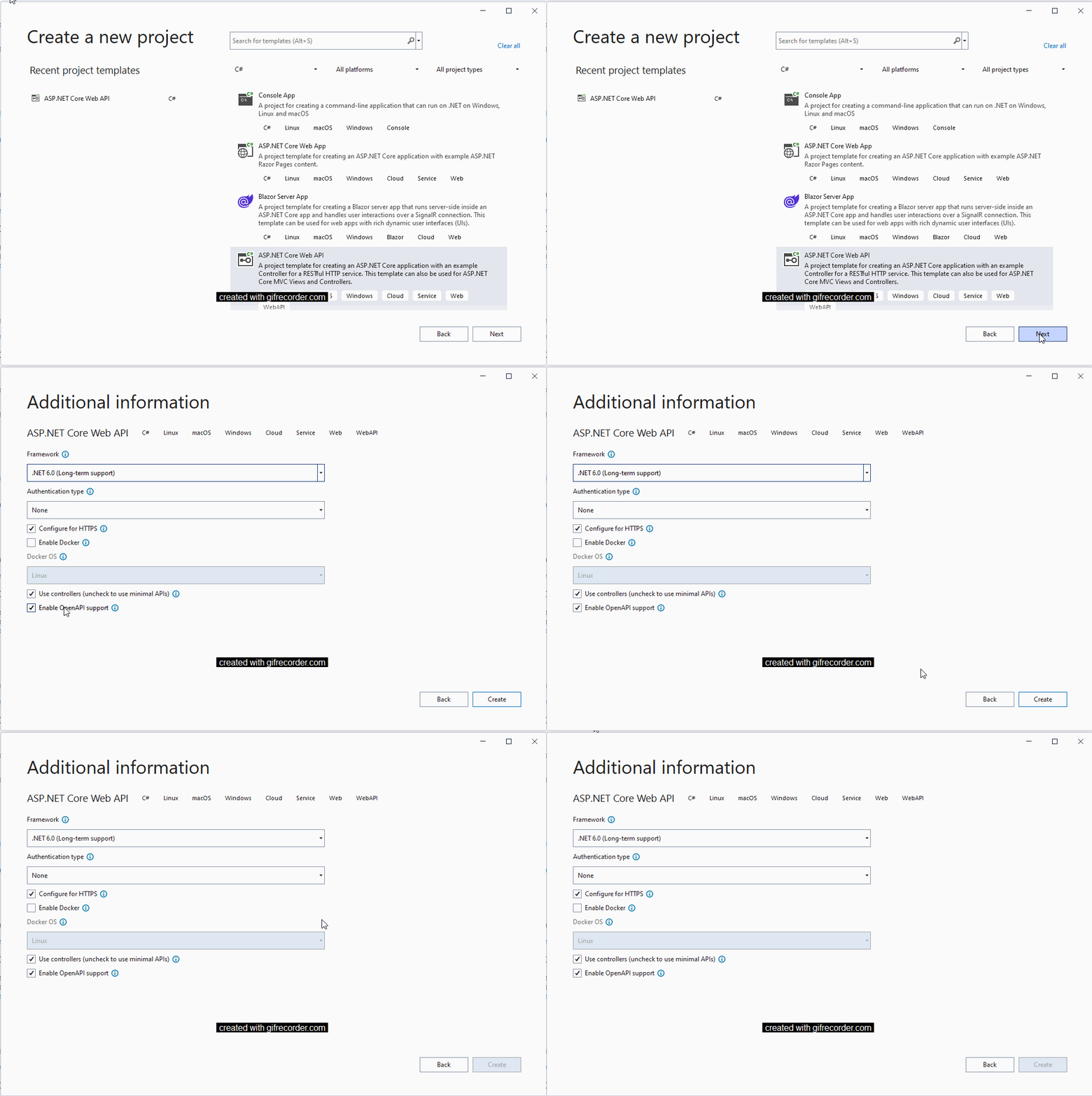
I will create a sample solution with .Net 6.0 to showcase the issue. Lets create a ASP.Net Core Web Api project with OpenAPI support enabled. This will make the solution to run with Swagger UI documentation.

When you run the solution you will get the sample page below

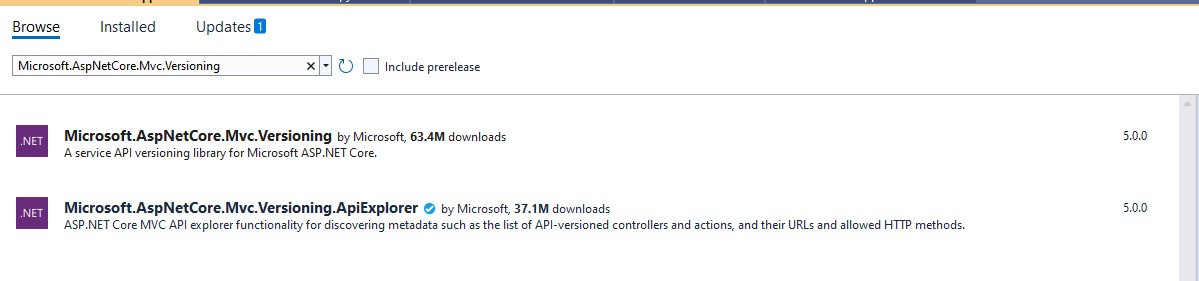
Now we need to add the following assembles to enable versioning of the API’s namely
Microsoft.AspNetCore.Mvc.Versioning (Version 5.0.0) and
Microsoft.AspNetCore.Mvc.Versioning.ApiExplorer (Version 5.0.0)

Nuget Package manager screen

Now you will have the solution added with the packages as shown below.

Solution Dependencies

Adding Swagger Extensions

Now we need to add some entension files to the solution that will have some configurations to add the solution with API versioning on the controllers. We will need to add 3 extension files to the solution namely AppBuilderExtensions.cs, ConfigureSwaggerOptions.cs and ServiceExtensions.cs file.

AppBuilderExtensions.cs

The extension file will have the code to iterate through the controllers with the version attributes defined and add it to the swagger UI as combo box.

public static class AppBuilderExtensions
{
    public static IApplicationBuilder UseSwaggerWithVersioning(this IApplicationBuilder app)
    {
        IServiceProvider services = app.ApplicationServices;
        var provider = services.GetRequiredService<IApiVersionDescriptionProvider>();

        app.UseSwagger();

        app.UseSwaggerUI(options =>
        {
            foreach (var description in provider.ApiVersionDescriptions)
            {
                options.SwaggerEndpoint($"/swagger/{description.GroupName}/swagger.json", $"Version - {description.GroupName.ToUpperInvariant()}");
            }
        });

        return app;
    }
}

ConfigureSwaggerOptions.cs

public class ConfigureSwaggerOptions : IConfigureNamedOptions<SwaggerGenOptions>
{
    private readonly IApiVersionDescriptionProvider provider;

    public ConfigureSwaggerOptions(IApiVersionDescriptionProvider provider)
    {
        this.provider = provider;
    }

    public void Configure(SwaggerGenOptions options)
    {
        // add swagger document for every API version discovered
        foreach (var description in provider.ApiVersionDescriptions)
        {
            options.SwaggerDoc(description.GroupName, CreateInfoForApiVersion(description));
        }
    }

    public void Configure(string name, SwaggerGenOptions options)
    {
        Configure(options);
    }

    private OpenApiInfo CreateInfoForApiVersion(ApiVersionDescription description)
    {
        var info = new OpenApiInfo()
        {
            Title = "WebApplication API",
            Version = description.ApiVersion.ToString()
        };

        if (description.IsDeprecated)
        {
            info.Description += " This API version has been deprecated.";
        }

        return info;
    }
}

ServiceExtensions.cs

public static class ServiceExtensions
{
    public static IServiceCollection AddCore(this IServiceCollection services)
    {
        return services.AddVersioning()
            .AddSwaggerVersioning();
    }

    private static IServiceCollection AddVersioning(this IServiceCollection services)
    {
        services.AddApiVersioning(setup =>
        {
            setup.DefaultApiVersion = new ApiVersion(1, 0);
            setup.AssumeDefaultVersionWhenUnspecified = true;
            setup.ReportApiVersions = true;
        });

        services.AddVersionedApiExplorer(setup =>
        {
            setup.GroupNameFormat = "'v'VVV";
            setup.SubstituteApiVersionInUrl = true;
        });

        return services;
    }

    private static IServiceCollection AddSwaggerVersioning(this IServiceCollection services)
    {
        services.AddSwaggerGen(options => {
            // for further customization
            //options.OperationFilter<DefaultValuesFilter>();
        });
        services.ConfigureOptions<ConfigureSwaggerOptions>();

        return services;
    }
}

Changes to the Program.cs file

In the program.cs file replace the text after the using statements as below

var builder = WebApplication.CreateBuilder(args);
{
    // Add Core 
    builder.Services.AddCore();

    builder.Services.AddControllers();

    var app = builder.Build();

    if (app.Environment.IsDevelopment())
    {
        app.UseDeveloperExceptionPage();
    }

    app.UseHttpsRedirection();

    app.UseRouting();

    // Core
    app.UseSwaggerWithVersioning();

    app.UseAuthorization();

    app.UseEndpoints(endpoints =>
    {
        endpoints.MapControllers();
    });

    app.Run();
}

Now when you run the application you will see the version in the combo box and the respective Web API version calls will be listed based on the version selcted in the combo box.

Adding Controllers with API Version

WeatherForecaseController.cs

In the default WeatherForecaseController class please replace it with the following code block

[ApiController]    
[ApiVersion("1.0")]    
[Route("api/v{version:apiVersion}/[controller]")]
public class WeatherForecastController : ControllerBase
{
    private static readonly string[] Summaries = new[]
    {
    "Freezing", "Bracing", "Chilly", "Cool", "Mild", "Warm", "Balmy", "Hot", "Sweltering", "Scorching"
};

    private readonly ILogger<WeatherForecastController> _logger;

    public WeatherForecastController(ILogger<WeatherForecastController> logger)
    {
        _logger = logger;
    }

    [MapToApiVersion("1.0")]
    [HttpGet("getweatherforcast", Name = "GetWeatherForecast")]
    public IEnumerable<WeatherForecast> Get()
    {
        return Enumerable.Range(1, 5).Select(index => new WeatherForecast
        {
            Date = DateTime.Now.AddDays(index),
            TemperatureC = Random.Shared.Next(-20, 55),
            Summary = Summaries[Random.Shared.Next(Summaries.Length)]
        })
        .ToArray();
    }
}

WeatherForecast2Controller.cs

Now create a new controller class called WeatherForecast2Controller.cs and replace the class with the following code snippet.

[ApiController]
[ApiVersion("2.0")]
[Route("api/v{version:apiVersion}/[controller]")]
public class WeatherForecast2Controller : ControllerBase
{
    private static readonly string[] Summaries = new[]
    {
    "Freezing", "Bracing", "Chilly", "Cool", "Mild", "Warm", "Balmy", "Hot", "Sweltering", "Scorching"
};

    private readonly ILogger<WeatherForecast2Controller> _logger;

    public WeatherForecast2Controller(ILogger<WeatherForecast2Controller> logger)
    {
        _logger = logger;
    }

    [MapToApiVersion("2.0")]
    [HttpGet("getweatherforcast", Name = "GetWeatherForecast2")]
    public IEnumerable<WeatherForecast> Get()
    {
        return Enumerable.Range(1, 5).Select(index => new WeatherForecast
        {
            Date = DateTime.Now.AddDays(index),
            TemperatureC = Random.Shared.Next(-20, 55),
            Summary = Summaries[Random.Shared.Next(Summaries.Length)]
        })
        .ToArray();
    }
}

Now run the project and you can see the Swagger UI now has a combo box with Version – X, selecting on the version it will display the respective Web API versions in the body of the page.

The code is an improvisation of the Asp.Net Web API version samples found in the Github here. This code was pretty much old and when I was developing a Web API project I modified it to the .Net Core 6.0 version. Until my next blog, happy coding !!!