| Author: Jayakumar Srinivasan | Date: 17-Jan-2025 |
If you’re a WordPress user, you might have encountered an issue where a black box appears over your post header images. This can be quite frustrating as it detracts from the visual appeal of your site. After some investigation, I discovered a simple solution to remove this black box. In this article, I’ll guide you through the steps to fix this issue and enhance the look of your WordPress posts.
Steps to remove the black box
First, navigate to your WordPress dashboard. From the left-hand menu, go to Appearance and then select Header. This will take you to the header customization page.
Step 1: Go to Appearance and select header

Step 2 : Collapse the Image page to see Site Settings
Once you’re on the header customization page, look for the option to collapse the image settings. This will reveal additional site settings that you need to access.
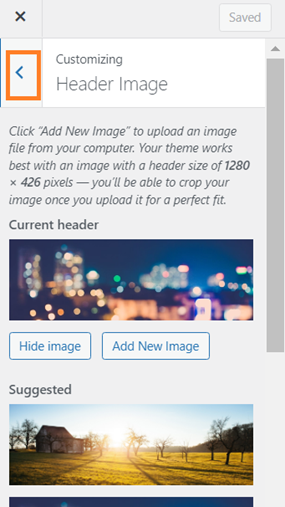

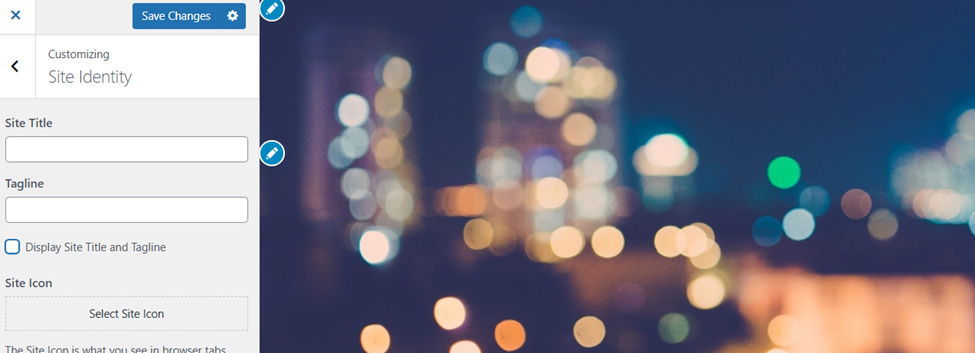
Step 3: Select Site Setting and uncheck Display Site Title and Tagline and Save Settings
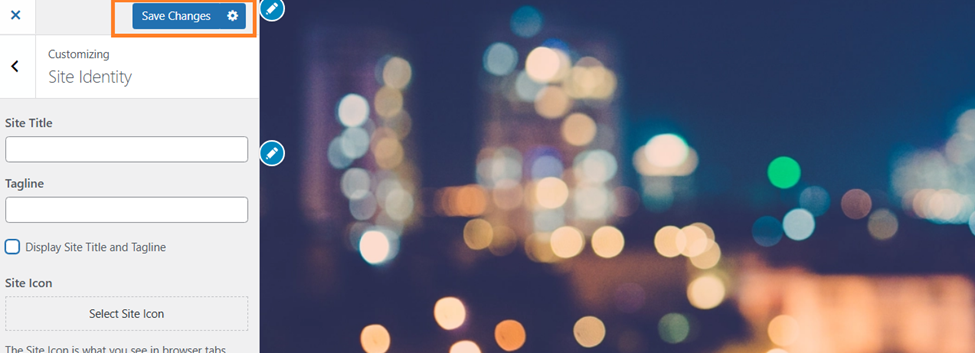
In the site settings, find the option labeled Display Site Title and Tagline. Uncheck this option to remove the black box from your header image. After unchecking, make sure to save your settings.
Before Uncheck

After Uncheck
Save Settings
Conclusion
By following these simple steps, you can easily remove the black box from your WordPress post header images, giving your site a cleaner and more professional look. This small tweak can make a big difference in the overall aesthetics of your blog or website.
References
For more WordPress tips and tricks, check out the official WordPress Documentation.
 dotnetjaikum.com